
Your ticket in: no Photoshop, no "prompt engineering degree," no money
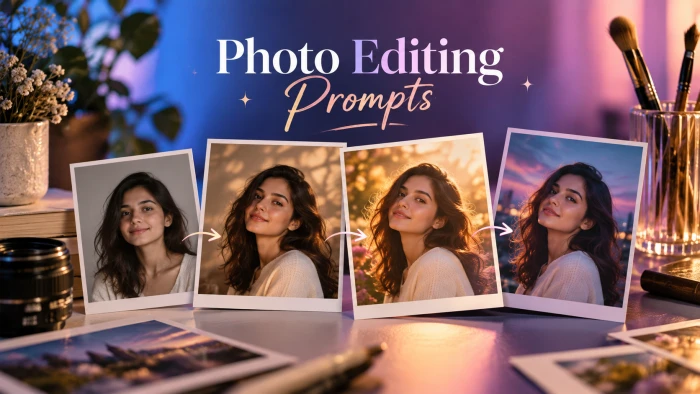
If you've scrolled past those dreamy AI family portraits, the cinematic birthday shots, the festival looks that get 10k likes, and thought "how are normal people making these?", this is the guide. Those images aren't made by designers. They're made by people who copy a prompt, paste it into ChatGPT, and press Enter.
That's it. That's the whole secret. The rest of this post just makes sure you don't waste your first ten attempts.
What you need (30 seconds)
- A ChatGPT account. Free works. Everyone can create images with ChatGPT; the difference is how many you get per day, and Dupple's breakdown of plan limits shows paid tiers mostly just raise that cap.
- A normal chat. Image generation works through the standard ChatGPT conversation interface. You don't need to find a hidden app or install anything.
- The right model. Some "thinking" or reasoning modes don't make images. If a prompt just returns text, switch to standard mode.
- Optional: a photo of yourself. Most viral prompts are photo edits: you upload a selfie and the prompt restyles it. More on that below.
The 3-step method
Step 1: Open and drop
Open chatgpt.com or the app. If you're doing a photo edit, hit the + (or paperclip) and attach your picture first. If you're creating from scratch, skip this.
Step 2: Paste and press
Paste your prompt. Type the words "generate an image" at the start if you want to be extra clear. Press Enter. Wait 20 to 60 seconds. Boom, image ready.
Step 3: Talk back
This is the step beginners skip. You don't start over when something's wrong. You reply. "Make the lighting warmer." "Same photo, but outdoors." "Keep my face exactly the same, change the outfit to red." Tell ChatGPT what to keep and what to change. Each reply is a free second draft.
Why this matters: as Kapwing's walkthrough of the current image tool points out, ChatGPT can now render readable text inside images and make targeted edits to an existing picture without any external software. So the edit is the workflow.
4 copy-paste prompts (zero thinking required)
Here's the cheat code. Sites like PromptPat collect the exact prompts behind trending images. They have 547+ tested prompts across 29+ collections, and the workflow is exactly what we just did: click the "Copy Prompt" button below any prompt card and the full text lands on your clipboard. Then open ChatGPT (or Gemini, Midjourney, whatever you use) and paste.
Below are four prompts in that same copy-paste style. Each one takes under a minute, and I've pointed you to the matching PromptPat collection where you can grab more variations.
Example 1: The "Studio Family Portrait" (upload a family photo first)
Turn the uploaded photo into a professional studio family portrait. Keep every person's face and features exactly as they are. Everyone wears matching cream-and-beige outfits, standing close together against a soft warm brown backdrop. Gentle studio lighting, slight film grain, shallow depth of field, shot on an 85mm lens. Realistic, high resolution, 4:5 portrait format.
Then reply with "Now make it black and white" and you have an instant second version. If this style is your thing, PromptPat's family photo collection has 16 more variations ready to copy.

Example 2: The "Cinematic Birthday Shot" (upload a selfie first)
Use my uploaded photo and keep my face 100% identical. Create a cinematic birthday scene: I'm holding a small cake with lit candles, surrounded by warm golden fairy lights and floating balloons in pastel pink and gold. Night-time rooftop setting with blurred city lights behind me. Soft glow on my face, dreamy bokeh, editorial photo quality. Vertical 9:16 for Instagram Stories.
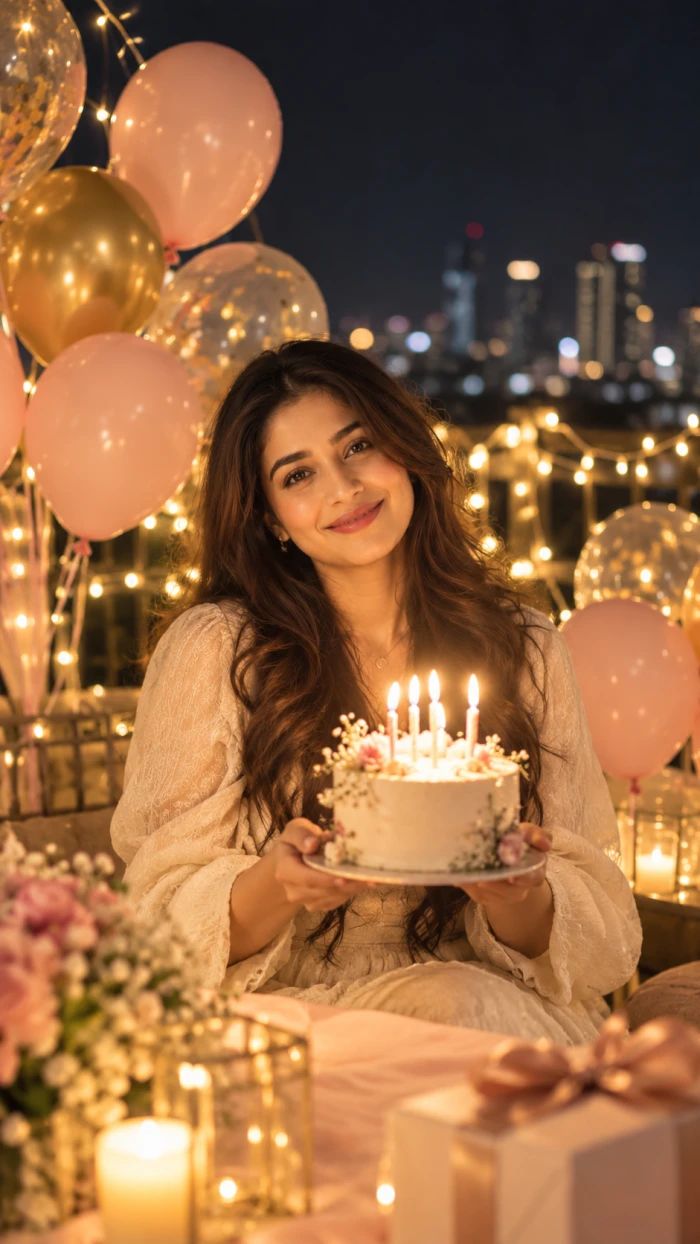
Then reply with "Add the text 'Happy 25th' in elegant gold script at the top." For twenty more birthday looks in the same spirit, browse PromptPat's birthday prompts for girls.
Example 3: The "Viral Instagram Edit" (upload a selfie first)
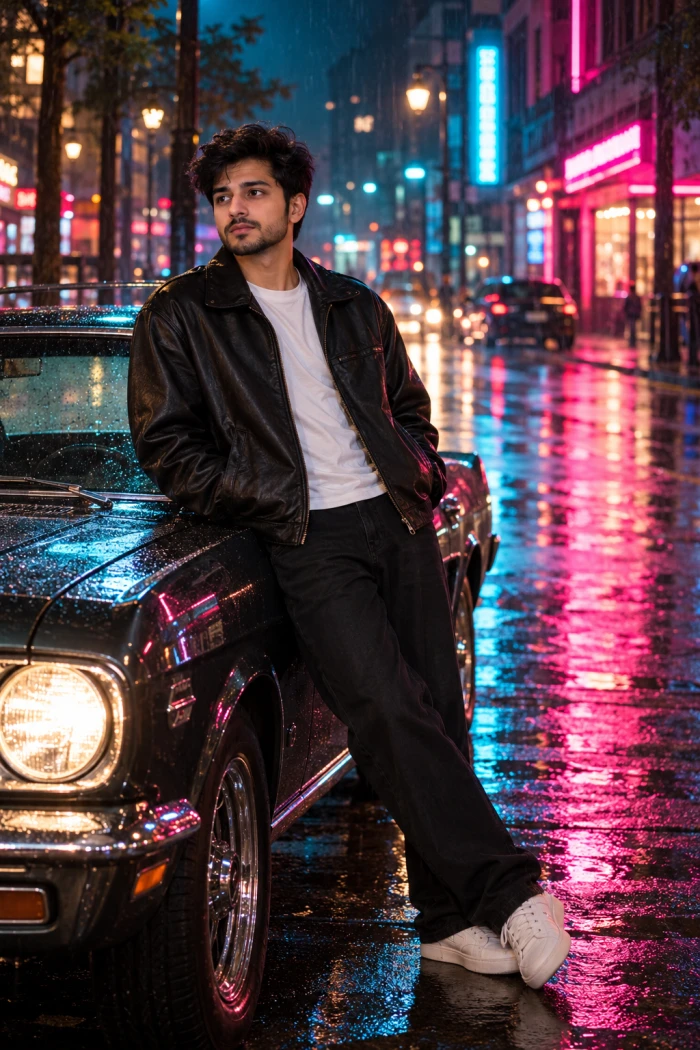
Edit my uploaded photo into a trending aesthetic portrait. Keep my face unchanged. Change the outfit to an oversized black leather jacket and white tee, place me leaning against a vintage car on a rainy neon-lit street at night. Cyan and magenta reflections on wet pavement, moody cinematic colour grade, sharp focus on the face, 4K quality.
Then reply with "Same scene, but daytime with soft overcast light." This is the category that gets the most copies on PromptPat, and their viral Instagram editing collection is where most of those edits come from.
Example 4: The "Festival Look" (upload a photo first)
Transform my uploaded photo into a traditional festive portrait while keeping my face exactly the same. Dress me in a richly embroidered red and gold outfit with subtle jewellery. Background: a softly lit courtyard decorated with hanging marigold garlands and glowing clay lamps at dusk. Warm golden-hour light, realistic skin texture, celebratory mood, high-detail photography.

Then reply with "Add a second version with a deep green outfit instead." Festival edits are huge right now, and PromptPat keeps separate collections for Navratri looks and Karwa Chauth portraits if you want something more specific.
💡 The one habit that separates good results from great: when you copy any prompt, replace the placeholder details (names, outfits, settings) with your own, then generate and refine from there. A prompt is a starting point, not a contract.
Write your own prompt in 5 ingredients
Every prompt above follows the same recipe. Once you see it, you can't unsee it:
- Subject: who or what ("my uploaded photo, face unchanged" / "a golden retriever")
- Action or pose: what's happening ("holding a cake" / "sleeping on a windowsill")
- Setting: where ("rainy neon street at night" / "a sunlit Tuscan kitchen")
- Style and light: the vibe ("cinematic, golden hour, film grain" / "flat vector illustration")
- Format: the shape ("9:16 vertical" / "square, 1:1")
Stack those five and you've written a pro-level prompt. Miss two and you get the "generic AI" look.
Lazy shortcut that works: let ChatGPT write the prompt for you. Type "Write me a detailed image prompt for [rough idea]", then paste what it gives you back as a new message.
Troubleshooting
"It changed my face."
Add "keep the face, features and skin tone exactly as in the uploaded photo" at the start of the prompt. Front-loading matters.
"The text in the image is gibberish."
Put the exact words in quotes and keep them short. ChatGPT can produce clear, readable text inside images, but five words beats twenty.
"All my images look the same today."
Start a fresh conversation for unrelated images. Earlier images in a chat influence the style of new ones.
"I asked for 4 images and they're all meh."
Asking for several images in one prompt lowers quality. Generate them one at a time.
"It refused."
Requests for real public figures, copyrighted characters in certain contexts, or explicit material are blocked. Describe a style ("a friendly superhero in red and blue") instead of a name.
"I can't find the download button."
Hover (desktop) or long-press (mobile) the image and a download icon appears. Every image also carries invisible C2PA metadata marking it as AI-generated, which Tech Jacks Solutions explains in their limits and tips guide. It's normal and never shows visibly.
Quick-start checklist
Don't close this tab and "do it later." Right now:
- Open ChatGPT.
- Copy Example 1 or Example 3 above.
- Attach a photo, paste, press Enter.
- Reply once with a change.
That fourth step, replying, is where you stop being a beginner. Everything else is just typing.
Found a prompt that went viral for you? Drop it in the comments and I'll add it to the vault.

Discussion
No comments yet. Be the first to share your thoughts!